
Users, permissions and 2FA
The panel supports several users, each with their own permissions, and two-step verification. The first user created at startup is Administrator.
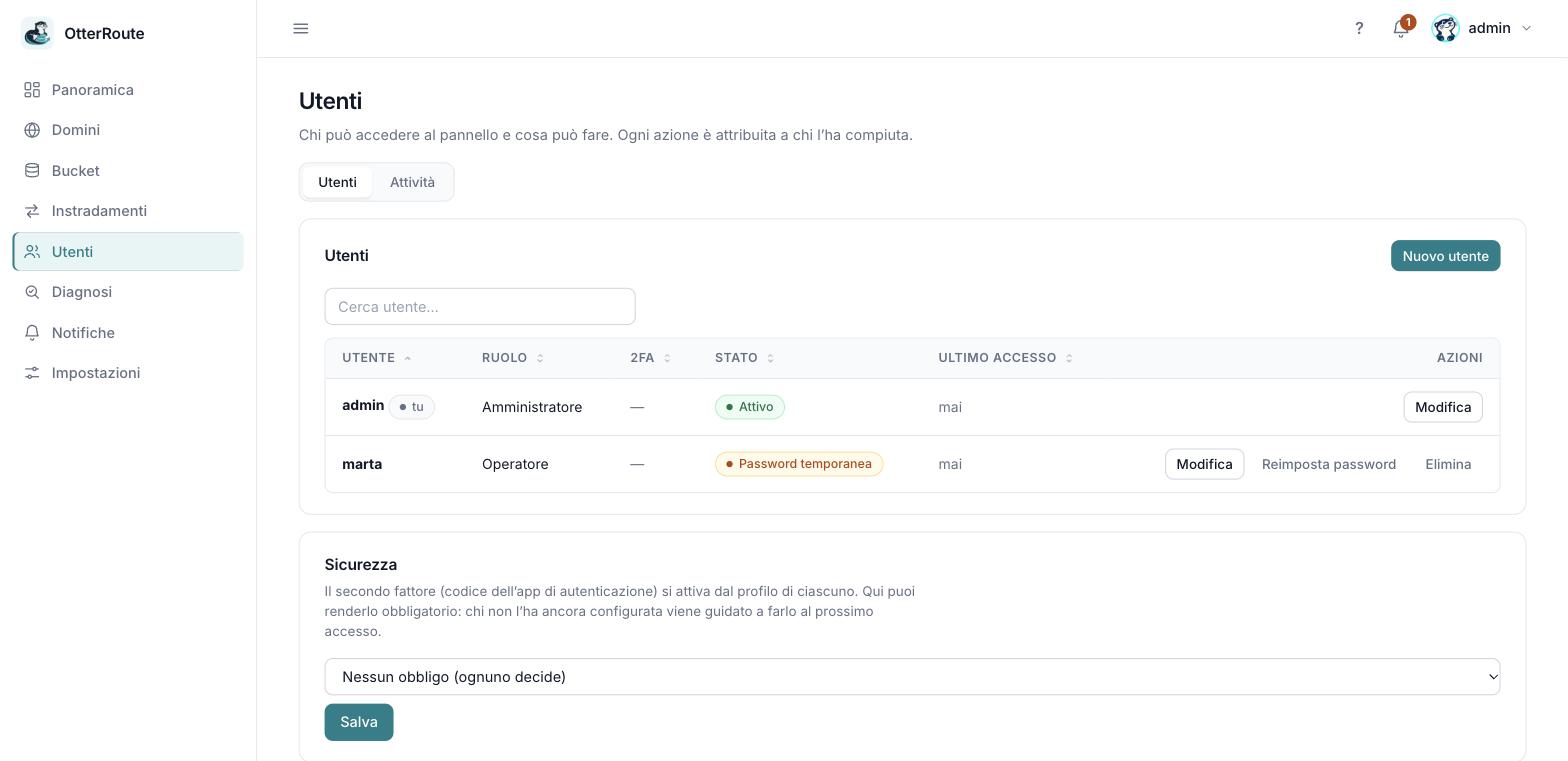
Users and roles, with the security policy · 26/09/2026
Roles and scopes
A role is a set of scopes, that is, of allowed actions. Every action in the panel requires a specific scope and the server checks it on every request.
| Role | What it can do |
|---|---|
| Administrator | Everything, including users, security and activity log. |
| Operator | Reads and edits domains, buckets and routes; sees statistics. No settings or users. |
| Read-only | Sees domains, buckets, routes and statistics, without being able to change anything. |
| Custom | The scopes chosen by hand. |
The full scope table is in Scopes and roles. Write always includes read of the same resource. Whoever cannot read a resource does not see its list either, and menu entries and buttons they cannot use do not appear.
Permissions are re-read on every request: if you change a user's role or disable them, it applies immediately, without waiting for a new login.
Adding a user
From Users → New user choose name, role (and, for custom, the scopes) and a temporary password, which you can leave empty to have one generated. The panel shows it only once: give it to the user, who will have to choose their own at first login.
From each user's row: Edit (role, scopes, disabling), Reset password, Reset 2FA, Delete.
Safety rules:
- The last user who can manage users cannot be deleted, disabled or downgraded, so you are never locked out of the panel.
- You cannot delete or disable your own account.
- Changing a password, disabling a user or resetting their 2FA immediately closes their sessions.
Two-step verification (2FA)
Besides the password, a 6-digit code generated by an authenticator app (Google Authenticator, 1Password, Authy, Microsoft Authenticator…) is needed. It is the TOTP standard (RFC 6238).
Enabling it
- Open My profile from the user menu and press Enable 2FA.
- Scan the QR code with the app (or enter the key by hand from the "Can't scan?" link).
- Type the 6-digit code the app shows and confirm.
- Keep the 10 recovery codes: they are shown only once, each is valid once and is needed if you lose your phone.
Signing in with 2FA
After username and password a second step appears: enter the app's code or choose Use a recovery code. A code already used is not valid again, and a ±30 second clock drift on the phone is tolerated.
Is the code rejected?
Almost always it is the clock: enable automatic time synchronization on the phone.
Disabling it or regenerating the codes
From the profile, with the password: Disable also requires a valid code; Regenerate recovery codes creates ten new ones and invalidates the old ones.
Making it mandatory
From Users → Security an administrator chooses the policy: no requirement, mandatory for everyone or mandatory for those who manage users. Whoever has not yet enabled 2FA is stopped after login and guided to set it up before using the panel; while the policy requires it, it cannot be disabled.
Protection against attacks
- 5 errors in 5 minutes (password or code) lock the user for 5 minutes. The lock is per user, not per address.
- Each two-step verification allows at most 5 attempts and expires after 5 minutes.
- Error messages do not reveal whether a username exists.
- Passwords are stored with argon2id; 2FA secrets and recovery codes (the latter only as hashes) are in a file readable only by its owner.
Activity log
Whoever has the users:manage scope sees in Users → Activity who did what and when: successful and failed logins, denied permissions, creation and deletion of domains, buckets, routes and users, settings changes, 2FA enabling or disabling. The log is a file (audit.jsonl) with rotation at 5 MB.
Losing access
If a user loses password and codes, an administrator can reset their password and 2FA. If the last administrator loses it, from the node's terminal:
otterroute --state-dir /path/to/state --reset-user usernameIt prints a temporary password, disables 2FA, re-enables the user and asks to change it at first login. It presupposes access to the machine.
Good to know
- Sessions last 7 days and live in memory: after a node restart you log in again.
- If you upgrade from a version with a single administrator, their account is migrated automatically, with the same password.