
First run
A freshly installed node is empty: no users, no domains, no storage.
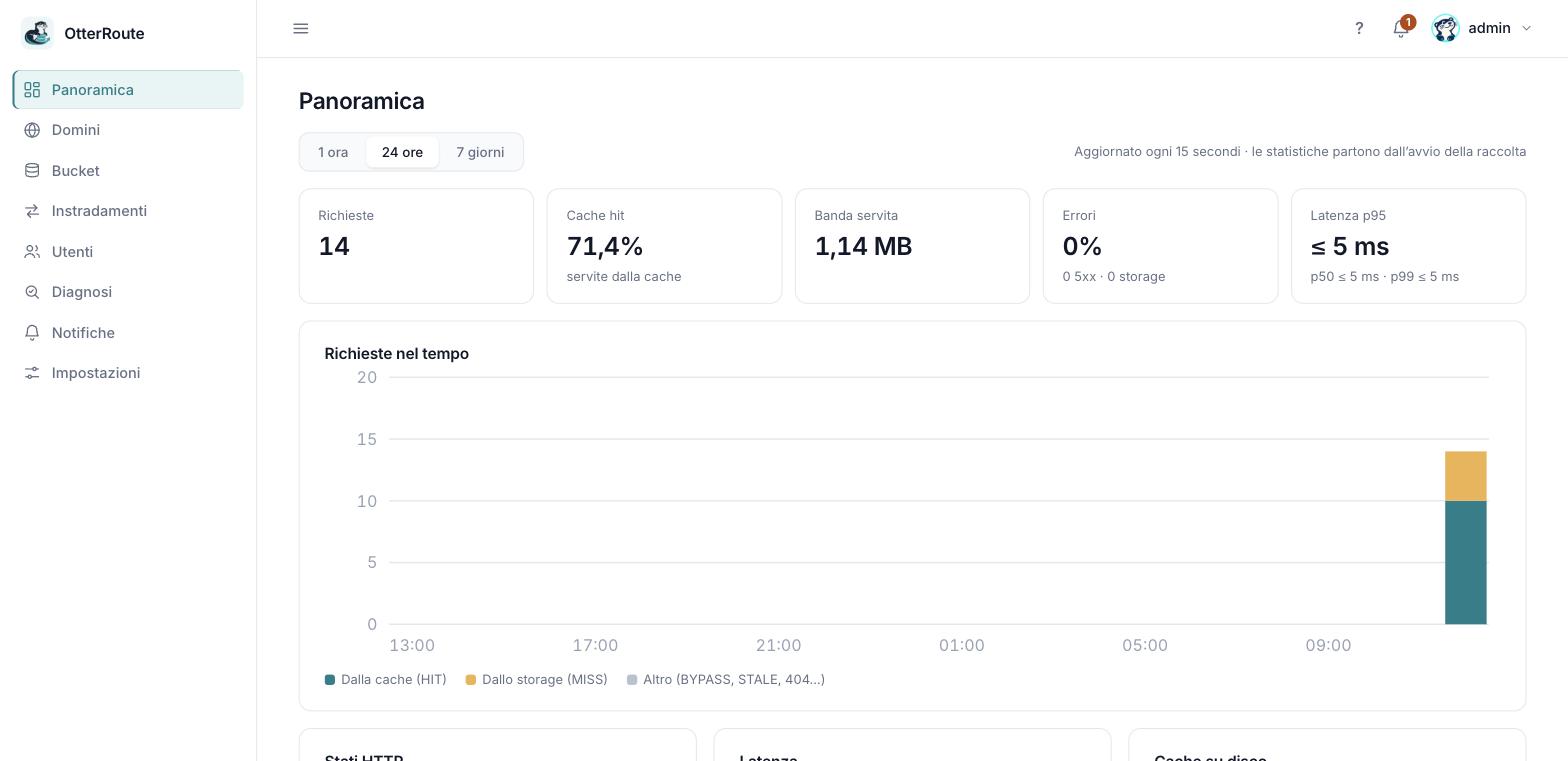
The Overview of a node with some traffic · 26/09/2026
1. Create the administrator
Open the panel at http://127.0.0.1:9090/. If you are on a remote server do not open port 9090: use an SSH tunnel and open the address from your computer.
ssh -L 9090:127.0.0.1:9090 user@your-serverThe first screen asks for the username and password (at least 10 characters) of the first Administrator. After creation this screen is no longer available: other users are added from the Users page.
2. Guided setup
On first login on an empty node the Guided setup opens by itself; if you close it, you can resume it from the alert at the top (the bell) or from the strip in the Overview. It has three steps:
- Domain — the name visitors will use to reach the files. The panel shows what must happen (the domain must resolve and reach this node) and verifies it. You can add it even if DNS is not ready yet: the node rechecks it by itself, see Domains and DNS.
- Bucket — endpoint, region, addressing, keys and the bucket, plus a test file that really exists. "Verify connection" signs a one-byte request on that file. See S3 buckets and the provider sheets.
- Route — verified domain + path prefix → bucket + folder. See Routes.
The domain must be verified
You cannot create a route on a pending domain. *.localhost names are valid immediately, handy for trying things without DNS.
3. Try the first file
From the Routes page, expand the row and type a file name: the panel requests it as a visitor would and shows status, X-Cache and time. The first time is MISS (it comes from the storage), the second HIT (from the disk cache).
From a terminal it is the same thing:
curl -si -H 'Host: img.localhost' http://127.0.0.1/barca.jpg | head -12What next
- Add more users and enable two-step verification.
- Put HTTPS in front of the node.
- Look at the statistics dashboard.